After Login Mbhelpers the first screen appears is setup wizard where you have to setup for various tasks like Salary/Employee management, Inquiry Management, Business Promotion, Customer account & Expense management etc.

In this article We are going to show setup steps for Salary/employee management which are as following:–
-
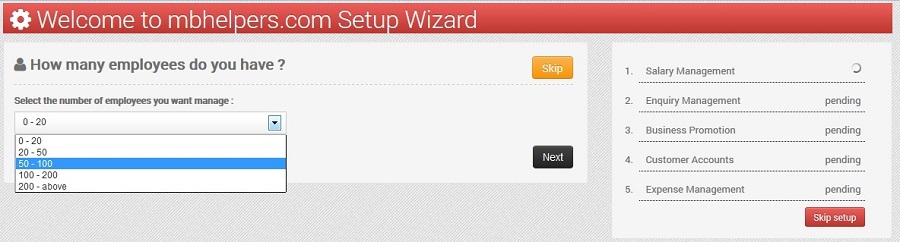
For starting Salary/employee management Just click in the check box in front of Salary management & then click on “Start setup” button in the upper screenshot. It will take you to next step where you have to select the number of employees you want to manage as shown in below screenshot.
-
After selecting number of employees you want to manage click on “Next” button & next screen with options of “Managing employees in subgroups/department” OR “Manage employee individually” will appear.
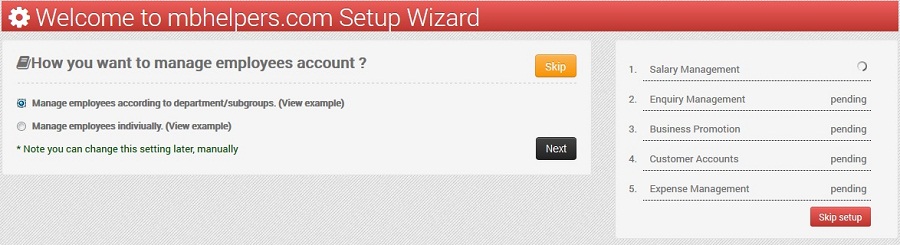
- You can select Option according to your need, here I am showing you to manage employee in subgroups/department. So for that I select “Manage employees in subgroups/department” and click on “Next” button.
-
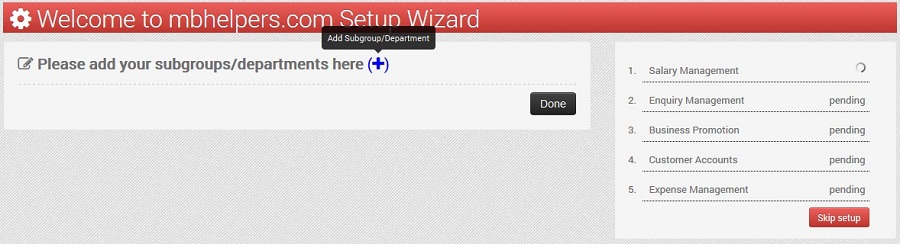
Now the below screen for adding subgroup/department will appear. For adding Click on blue colored “+” link shown in front of line “Please add your subgroup/department here” .
-
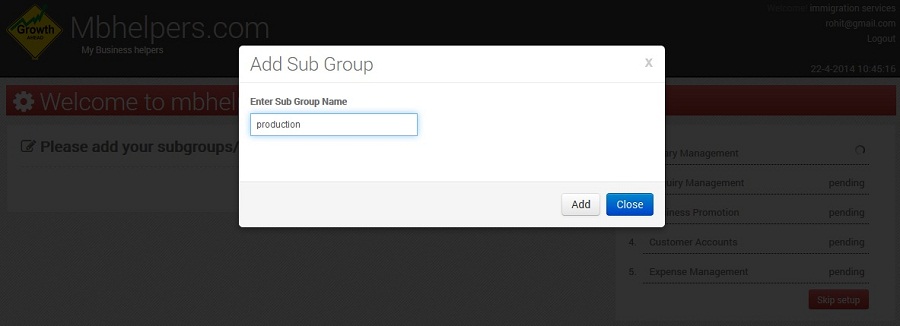
After clicking (+) link dialog box will open asking for sub group name. Enter name & click “Add” button.
-
After adding Subgroup the below screen will appear shows your added subgroup name. Click on (+) button in front of subgroup name which is “production” in this example to add customers in that group.
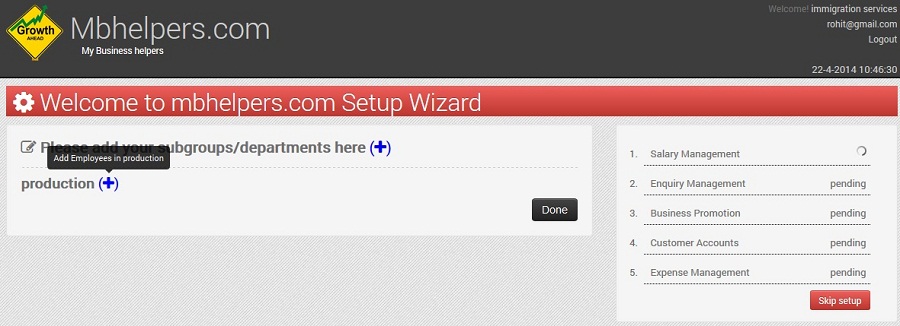
-
On clicking this (+) button the dialog screen for adding customer will open. Fill the form & click “save” button for adding customers.
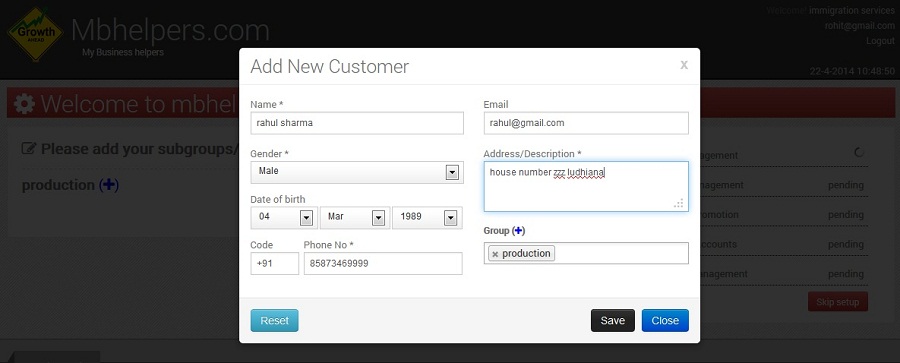
- Repeat step no. 6 for adding more customers in a subgroup.
- After adding customers in a subgroup repeat step no. 4 for creating more subgroup.
-
After adding subgroups & customers you will see subgroup with their added customers as below. To complete this setup click on “Done” button at the right bottom.
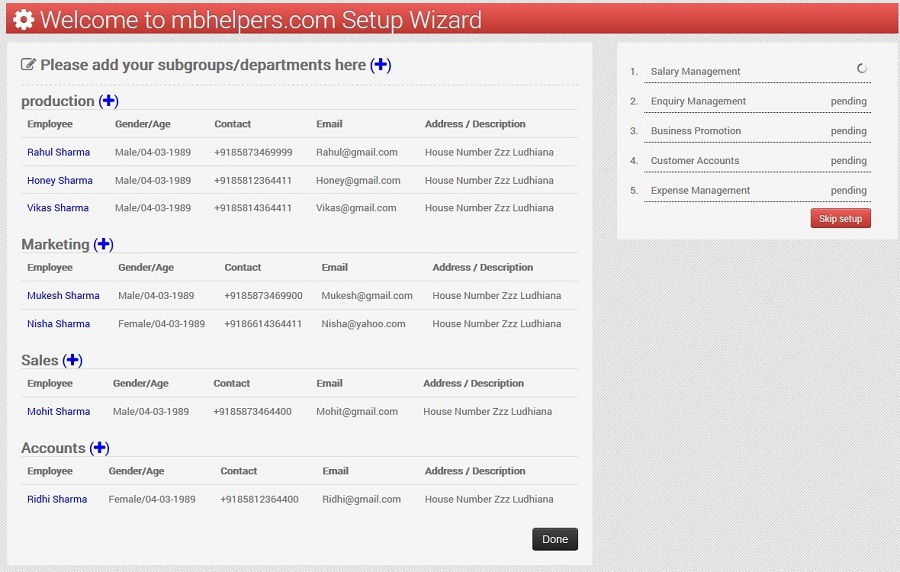
- Employee/salary setup is finished Click here to see setup for Enquiry management.
